
1. The core idea: two dials
Everything in Sermon Cell flows from two dials that are deliberately never conflated:
- Context warmth — accumulates. Across sessions the cell remembers you: your voice, your tradition, what landed last Sunday, the texts you return to. This is earned and never reset. It opens knowing you.
- Drafting help — resets to zero every session. How much the cell writes always starts at "questions only." Help is reached for, never given by default. This is what guarantees the sermon is yours.
Warm relationship + cold drafting gate = no punishment of the faithful user, and no accidental cheating.
2. Getting started
2.1 Sign in
Sermon Cell is a hosted web app — open https://sermoncell.com in any modern browser; there's nothing to install.
- Visiting sermoncell.com shows a public welcome page. Click Create account or Sign in to begin. (Public About, Privacy, and Terms pages are linked from the footer.)
- Create an account with your email and a password, or use Continue with Google — one click, no password to remember. (If you don't use Gmail, the email-and-password path works too — but the easiest path is Google, so there's no password to forget.)
- Forgot your password? A "Forgot password?" link sits under the sign-in form. Automated reset isn't wired up yet — using it tells the team to reset you by hand; for now the fastest route is to email [email protected] and we'll reset it for you.
- Sign out anytime from the log-out icon (a door-with-arrow) in the top-right of the top bar.
- Your login works across Martello Systems apps (it's the shared MartelloAuth sign-in), so the same credentials get you in everywhere.
The first time you sign in, you go straight to orientation (§3), which sets up your study.
2.2 The AI — nothing to set up
The thinking partner is Claude-backed, and there's nothing for you to configure — no keys, no setup on your side (behind the scenes it runs through a secure gateway). It's available on a paid plan (see §2.3). If you ever see an "AI offline" badge in the top bar, the partner is briefly unavailable and the app falls back to its plain, non-AI tools — your work is never blocked.
Every AI feature is grounded on the verified KJV spine and keeps you in the driver's seat, and each one has a useful non-AI fallback so the app is never dead weight: Scripture lookup, search, cross-references, filing, points/anchors, side-catch, the concept map, the Sunday packet, and reflection all work as plain, deterministic tools; the partner dialogue, draft review, voice fingerprint, and organization get richer with AI but degrade gracefully if the service is ever briefly unavailable.
6. The help ladder (the drafting dial)
Four levels. Each step up is an explicit choice, and it resets to 0 at the next session.
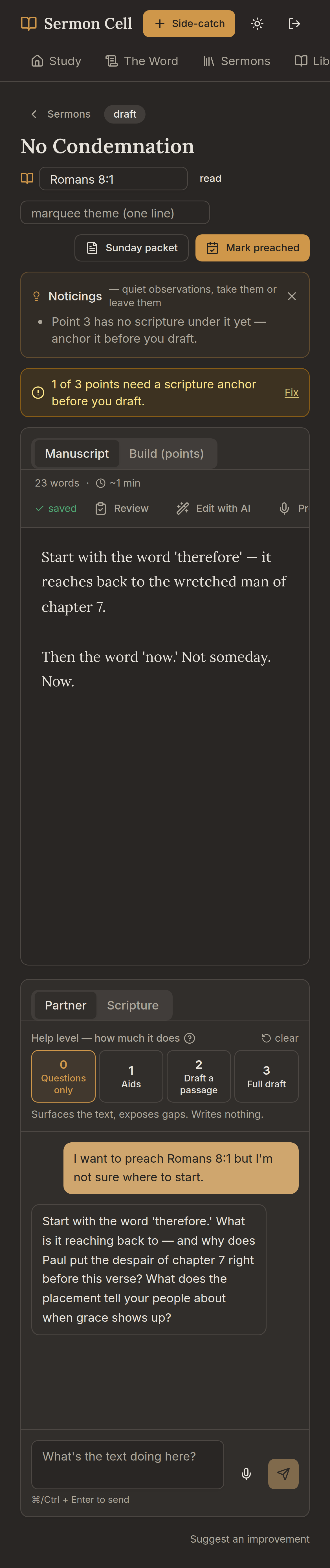
- 0 — Questions only (default). Surfaces what the text says, exposes gaps. Writes nothing. If you're clearly stuck, it gives one short nudge, then returns to questioning.
- 1 — Aids. Illustrations, structure drawn from your own proven shapes, exegesis pointers, verified cross-references. You write every word.
- 2 — Draft a passage. From your notes, in your voice, it drafts the single passage you ask for. You edit.
- 3 — Full draft. From your points and notes, it drafts a full sermon in your voice and your tradition's shape. You edit every line.
At levels 1+, any editorial lenses you've enabled (see §12) brief the partner.